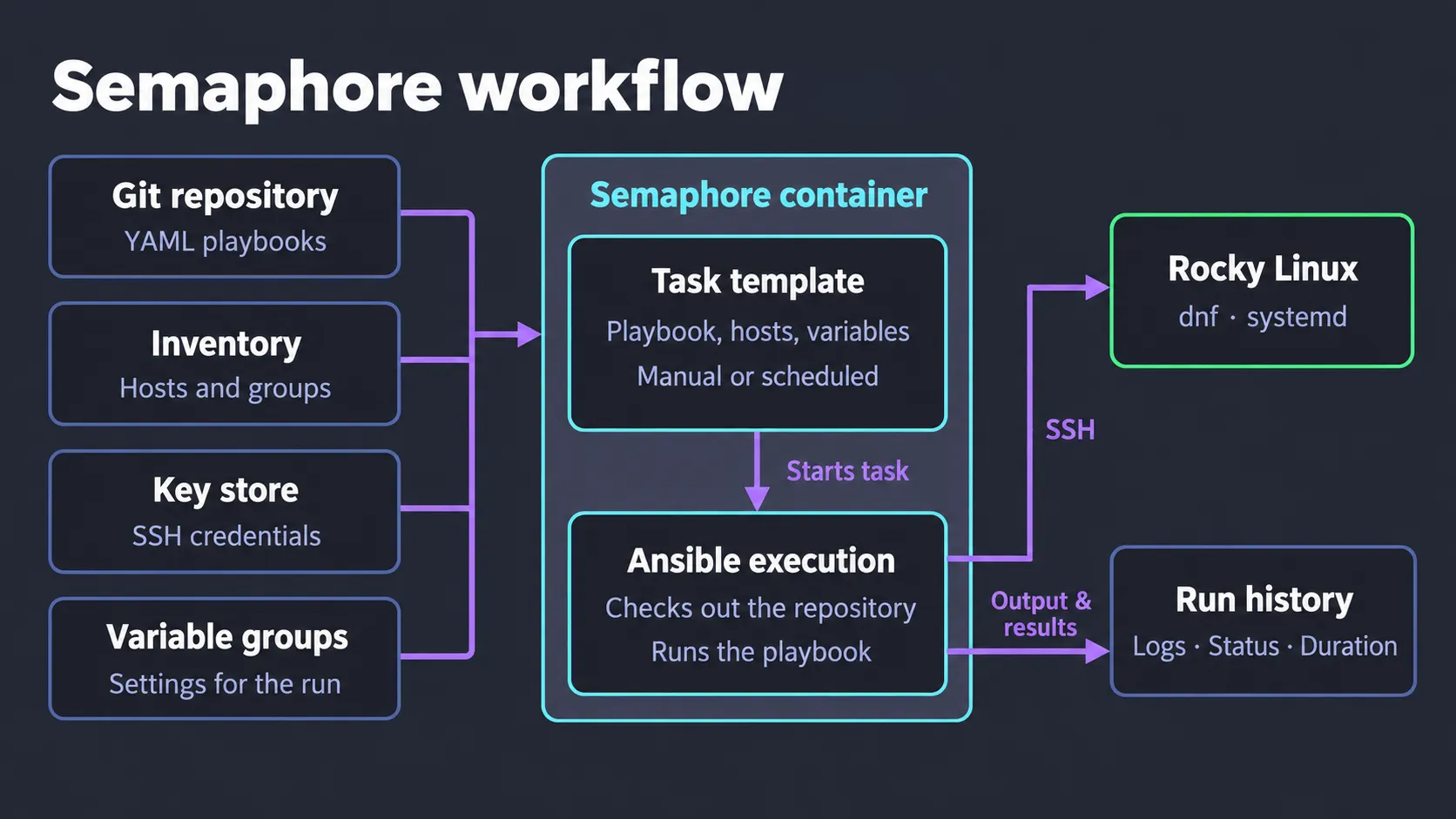
I use Semaphore UI to handle most of the routine (“boring”) work on my Linux machines: applying package updates, keeping core services running, and handling planned reboots. The Ansible playbooks live in my Git repository. Semaphore gives me one place to run them, schedule them, and check the results.
The dashboard is my favorite part. It shows what ran and what failed. I do not have to dig through terminal output, and I do not keep a separate cron job for each playbook.
This is a series on the routine work I automate with Semaphore. I am starting with three simple playbooks for Rocky Linux. The same approach should carry over to other RHEL-type distros, with a few adjustments depending on the environment.
Where Semaphore fits
There are three pieces involved:
dnfinstalls and updates packages on each Rocky Linux machine;- Ansible describes the work in YAML playbooks and runs it against the hosts I select;
- Semaphore UI provides a web interface for running those playbooks, scheduling jobs, and reviewing their output.
Semaphore is open source and self-hosted. It supports other automation tools as well, such as Terraform, OpenTofu, and PowerShell, but this post focuses on Ansible.
Ansible still does the work on each host. Semaphore decides when it runs and keeps the record of what happened.
The setup
I run Semaphore in an LXC container in my homelab. For these jobs, the basic setup is a Git repository, an inventory, and credentials. The repository holds the playbooks. The inventory tells Ansible which hosts are available and how to connect to them.
A minimal inventory, saved as inventory.ini, looks like this:
[rhel_family]
rocky01
rocky02
rocky03

[rhel_family:vars]
ansible_user=ansible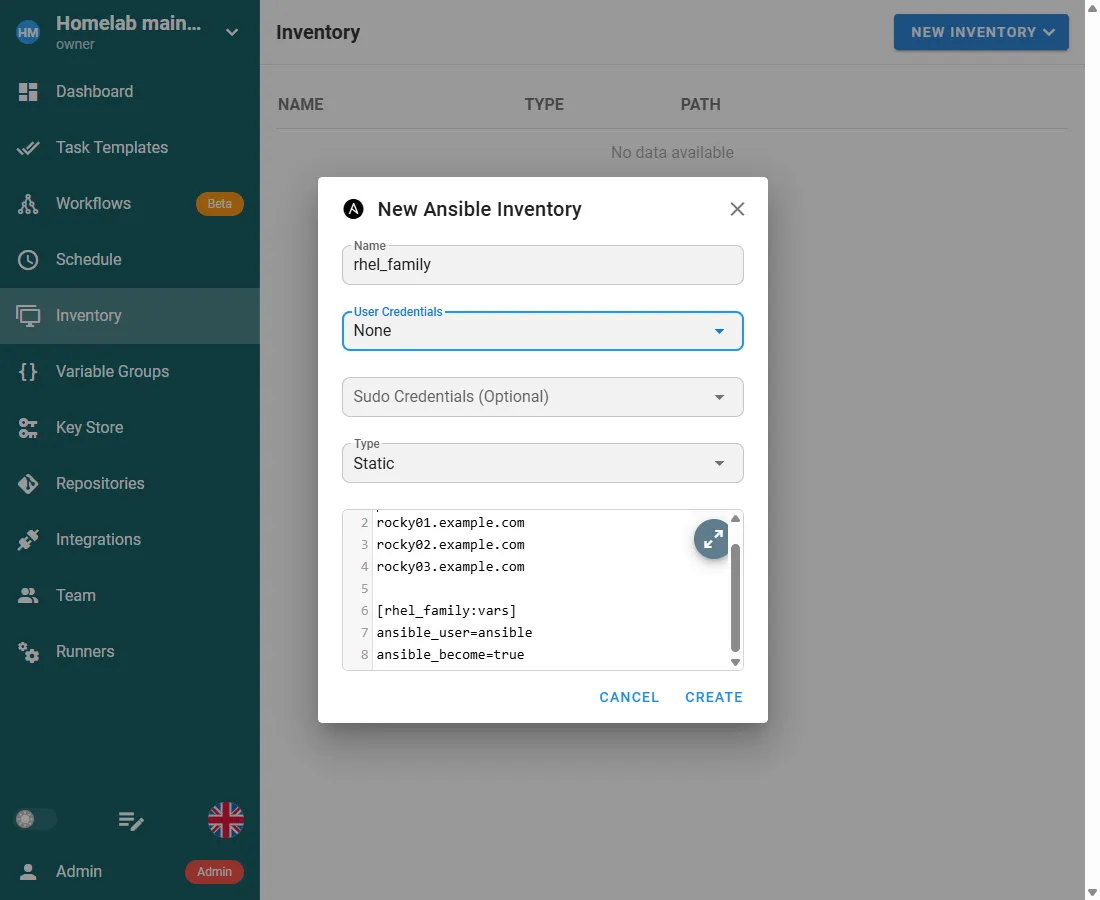
Note that the ansible account needs to exist on each host, accept the
SSH key, and have permission to use sudo. The hosts also need a
compatible Python installation and the Python DNF bindings that Ansible
uses. This post assumes that basic access is already in place.
The private SSH key goes in Semaphore’s key store, which supports
encrypted storage, and is assigned to the inventory. If sudo requires a
password, that credential needs to be configured too. Remember that
neither belongs in the playbooks or in Git.
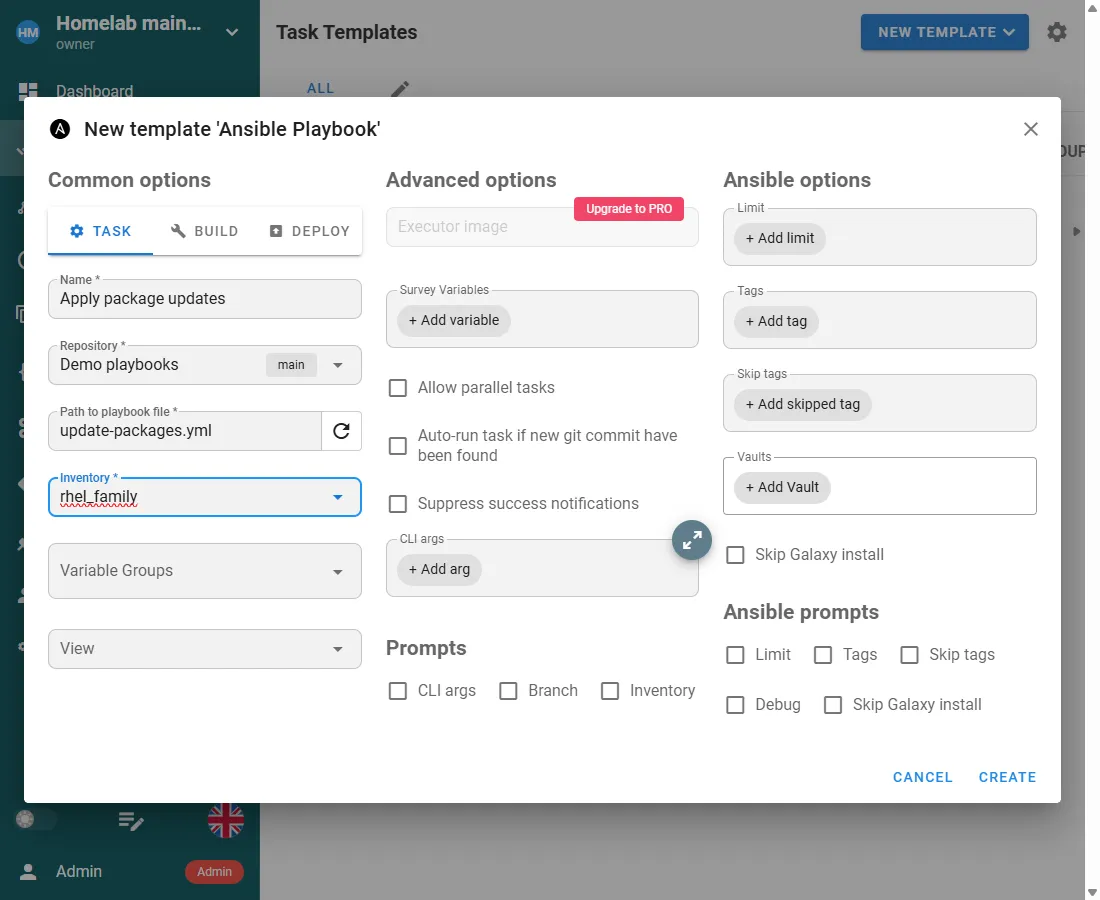
A task template brings together the repository, playbook, inventory, and any variables the job needs. Semaphore updates its Git checkout when a task runs, so the playbooks stay managed in the repository.
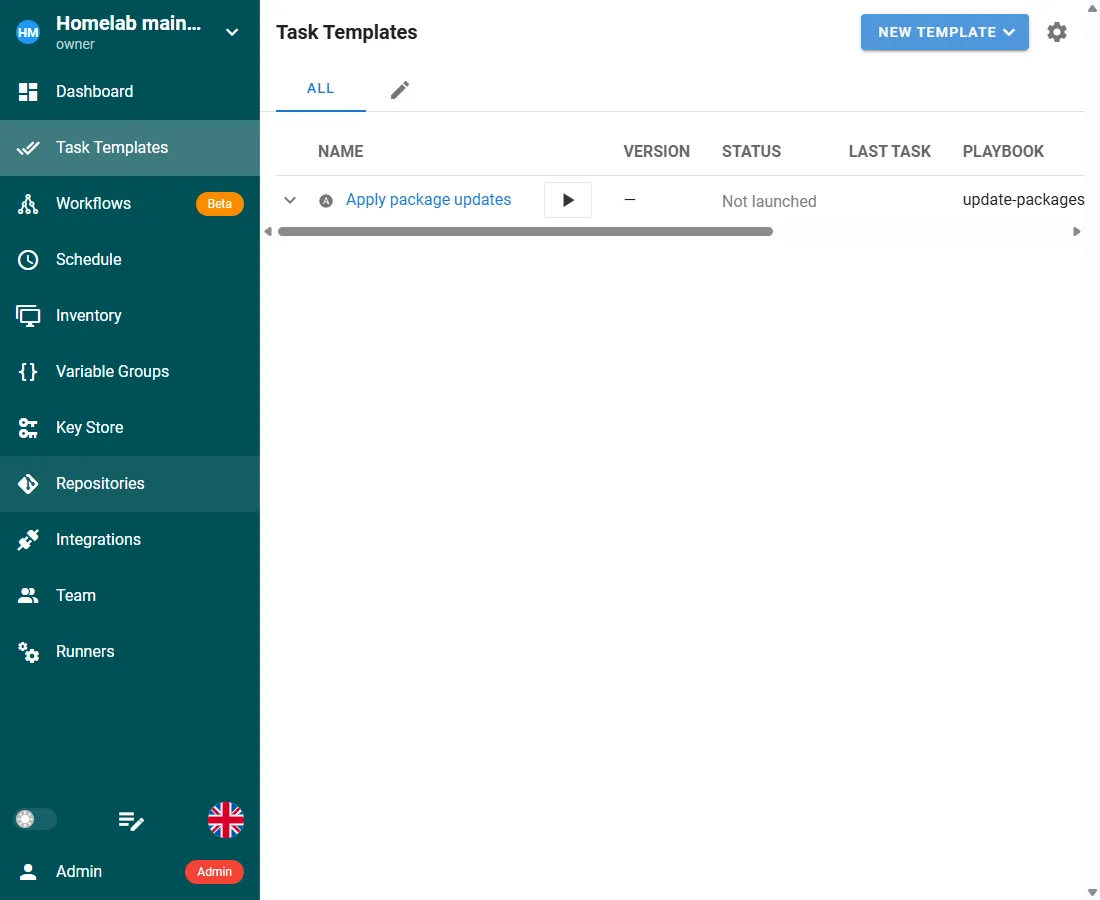
Each playbook below gets its own template. Once configured, I can run it manually or put it on a schedule.
Applying updates one host at a time
The first playbook applies available updates to installed packages from the enabled repositories. It does not request a reboot.
Save it as update-packages.yml:
---
- name: Apply package updates
  hosts: rhel_family
  become: true
  serial: 1
  any_errors_fatal: true

  tasks:
    - name: Update installed packages
      ansible.builtin.dnf:
        name: "*"
        state: latest
        update_cache: true
        update_only: true
become: true tells Ansible to use elevated privileges. The DNF
module
checks for updates and applies them to installed packages, including
the dependencies the update needs.
serial: 1 processes one host at a time.
any_errors_fatal: true stops the run if a task fails, before it moves
on to later hosts.
That catches failures Ansible can see. It does not guarantee that an application still works after a package installs successfully. For anything important, an application health check belongs as part of your standard maintenance process.
I keep reboots separate so I can decide when a host goes offline. That does not make updates disruption-free, and some fixes will not take effect until a service or the host restarts.
Reboots belong in their own job
The second playbook handles reboots as a separate job. That lets me apply updates first and restart the hosts during a maintenance window.
Save it as reboot-hosts.yml:
---
- name: Reboot Linux hosts
  hosts: rhel_family
  become: true
  serial: 1
  any_errors_fatal: true

  tasks:
    - name: Reboot and wait for the host to return
      ansible.builtin.reboot:
        reboot_timeout: 600
The reboot
module
handles the restart, waits for the host to come back, and checks that it
responds to commands. I do not need separate tasks to disconnect, wait,
and reconnect. Slower hosts may need a higher reboot_timeout.
As with the update playbook, serial: 1 works through one host at a
time. If a reboot fails or a host does not return within the module’s
timeout, any_errors_fatal: true stops the job before later hosts are
rebooted.
Note that each normal run reboots every selected host. It does not check whether an update requires a reboot. Give it its own Semaphore template and use the host limit to select what should restart.
To reboot one host from a configured Ansible environment:
ansible-playbook -i inventory.ini reboot-hosts.yml --limit rocky01Make sure the Semaphore container is not in rhel_family. Otherwise the
job reboots the machine it is running on and stops before it finishes.
The same goes for the host that runs the container, if it is managed in
the same inventory. A successful reconnect also does not prove the
applications are healthy, so run the service playbook and check anything
important afterward.
Keeping core services running
The third playbook makes sure a short list of services is running and enabled at boot.
Save it as ensure-services.yml:
---
- name: Keep core services running
  hosts: rhel_family
  become: true

  vars:
    core_services:
      - sshd
      - chronyd
      - firewalld

  tasks:
    - name: Ensure core services are enabled and started
      ansible.builtin.systemd_service:
        name: "{{ item }}"
        state: started
        enabled: true
      loop: "{{ core_services }}"
These cover SSH access, time synchronization, and the firewall. Adjust the list to match the services installed and intended to run on your hosts.
If a service is stopped, Ansible starts it. If it is disabled at boot, Ansible enables it. Services already in the expected state are left alone. That is the useful part of the systemd service module: I describe the state I want instead of writing separate commands to check, enable, and start each service.
You can run the playbook with --check to preview what Ansible would
change.
Check before you schedule
Start with one noncritical host and review the output. From a configured Ansible environment, a preview of the update job looks like this:
ansible-playbook -i inventory.ini update-packages.yml --limit rocky01 --checkRemove --check when you are ready to apply the updates to that host. A
dry run is useful, but the first real run is still worth watching.
Weekly updates and daily service checks are a reasonable starting point for a homelab. Adjust that around maintenance windows and the systems involved. An urgent security fix may need attention before the next scheduled run.
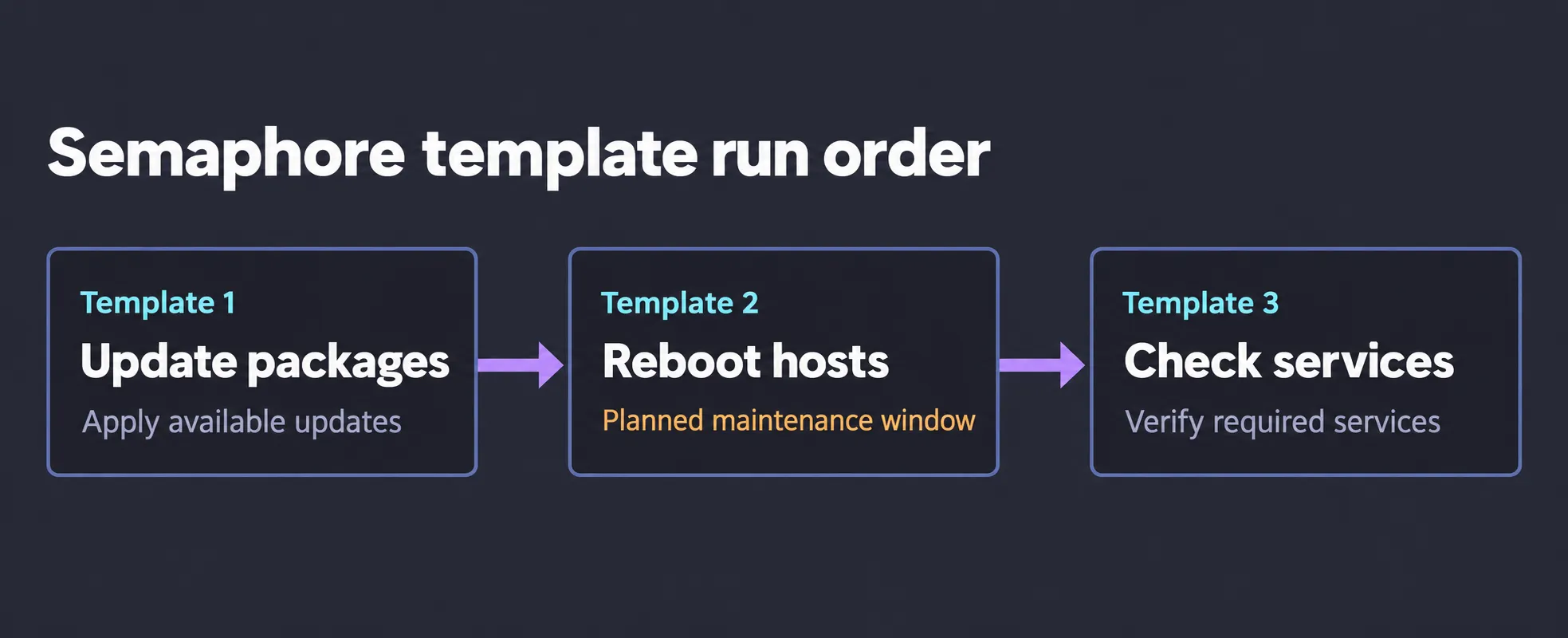
For reboots, start with manual runs during a planned maintenance window. Wait for the update job to finish before starting the reboot template, then run the service playbook and check application health afterward. A separate reboot template gives me control over that timing.
Each job leaves its output in Semaphore’s history. Enable failure notifications so you are aware when something needs attention, and avoid scheduling maintenance jobs that work on the same hosts at the same time.
Part 2 will cover checks that confirm applications still work after maintenance. I will follow this tutorial, walk through one service and an application health check, and show what happens when that check fails.